> ## Documentation Index
> Fetch the complete documentation index at: https://help.suggix.com/llms.txt
> Use this file to discover all available pages before exploring further.
# Changelog
> Create, schedule, edit, publish, and manage product updates in Suggix.
The Changelog module helps you publish product updates and keep users informed about what has changed. Use it for release notes, feature announcements, important improvements, bug fixes, and other updates that users should know about.
Published changelog entries appear on your public feedback portal. Users can search updates, read details, and like entries that are useful to them.
 ## Changelog list
Open **Changelog** from the Suggix dashboard sidebar to view and manage all changelog entries.
## Changelog list
Open **Changelog** from the Suggix dashboard sidebar to view and manage all changelog entries.
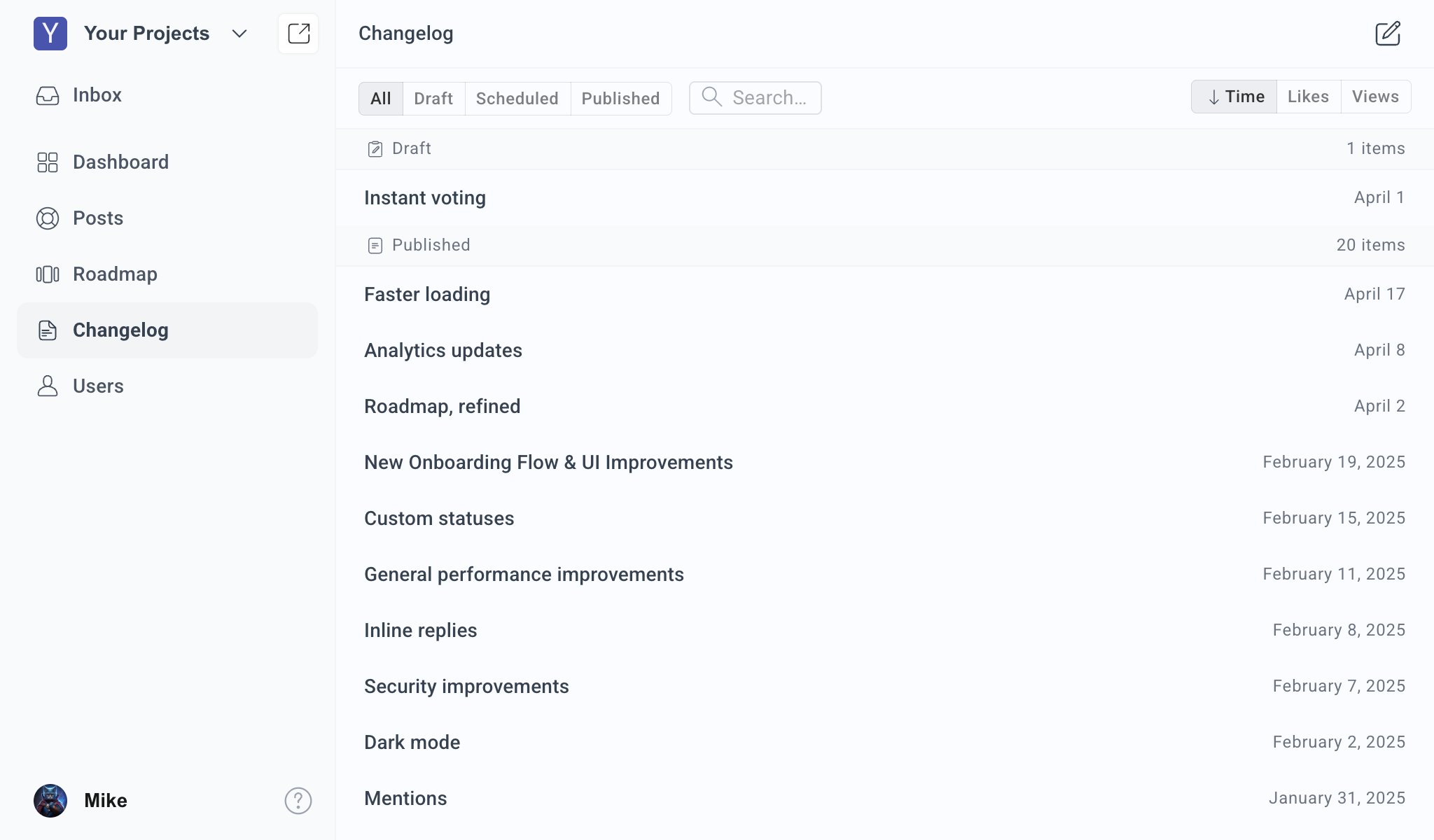 The list includes:
* **Status filters**: View `All`, `Draft`, `Scheduled`, or `Published` entries.
* **Search**: Find entries by title or content.
* **Sorting**: Sort by publish time, likes, or views.
* **Grouped sections**: Entries are grouped by status so drafts, scheduled releases, and published updates are easy to scan.
* **Entry dates**: Published and scheduled entries show their relevant release date.
Use the list to review upcoming releases, find older updates, and check which announcements are already public.
## Create a changelog
Click the create button in the top-right corner of the Changelog page to add a new entry.
The list includes:
* **Status filters**: View `All`, `Draft`, `Scheduled`, or `Published` entries.
* **Search**: Find entries by title or content.
* **Sorting**: Sort by publish time, likes, or views.
* **Grouped sections**: Entries are grouped by status so drafts, scheduled releases, and published updates are easy to scan.
* **Entry dates**: Published and scheduled entries show their relevant release date.
Use the list to review upcoming releases, find older updates, and check which announcements are already public.
## Create a changelog
Click the create button in the top-right corner of the Changelog page to add a new entry.
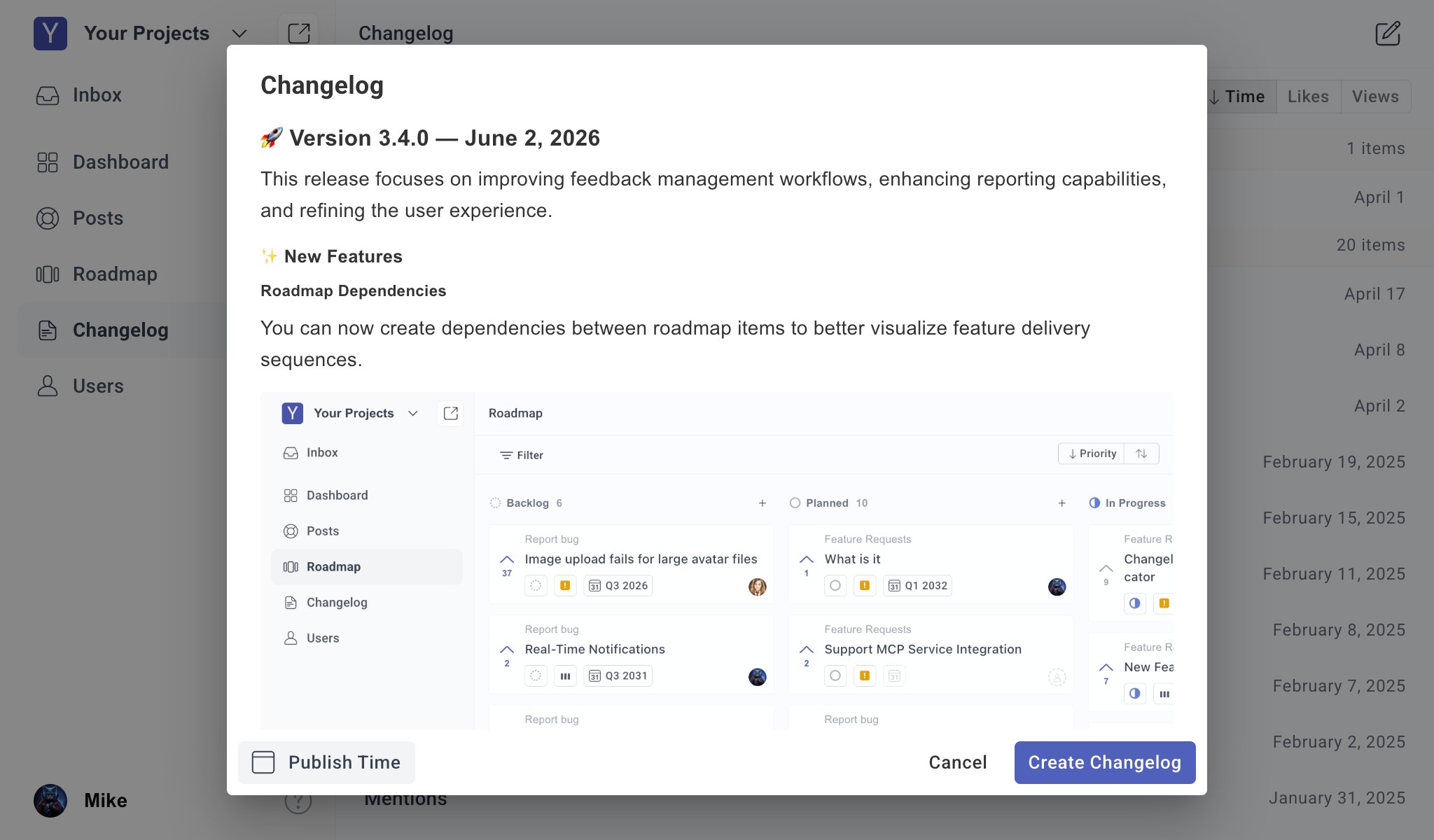 When creating an entry, include:
* **Title**: A clear release title, such as `Version 3.4.0` or `Faster loading`.
* **Summary**: A short opening paragraph that explains the value of the update.
* **Sections**: Group related changes under headings such as `New Features`, `Improvements`, or `Bug Fixes`.
* **Details**: Explain what changed, who benefits, and whether users need to take action.
* **Images**: Add screenshots when the update changes a visible workflow or interface.
Write changelog entries for users, not only for your internal team. Lead with the user-visible benefit before adding implementation details.
## Publish now or schedule release
You can publish a changelog immediately or schedule it for a future date and time.
When creating an entry, include:
* **Title**: A clear release title, such as `Version 3.4.0` or `Faster loading`.
* **Summary**: A short opening paragraph that explains the value of the update.
* **Sections**: Group related changes under headings such as `New Features`, `Improvements`, or `Bug Fixes`.
* **Details**: Explain what changed, who benefits, and whether users need to take action.
* **Images**: Add screenshots when the update changes a visible workflow or interface.
Write changelog entries for users, not only for your internal team. Lead with the user-visible benefit before adding implementation details.
## Publish now or schedule release
You can publish a changelog immediately or schedule it for a future date and time.
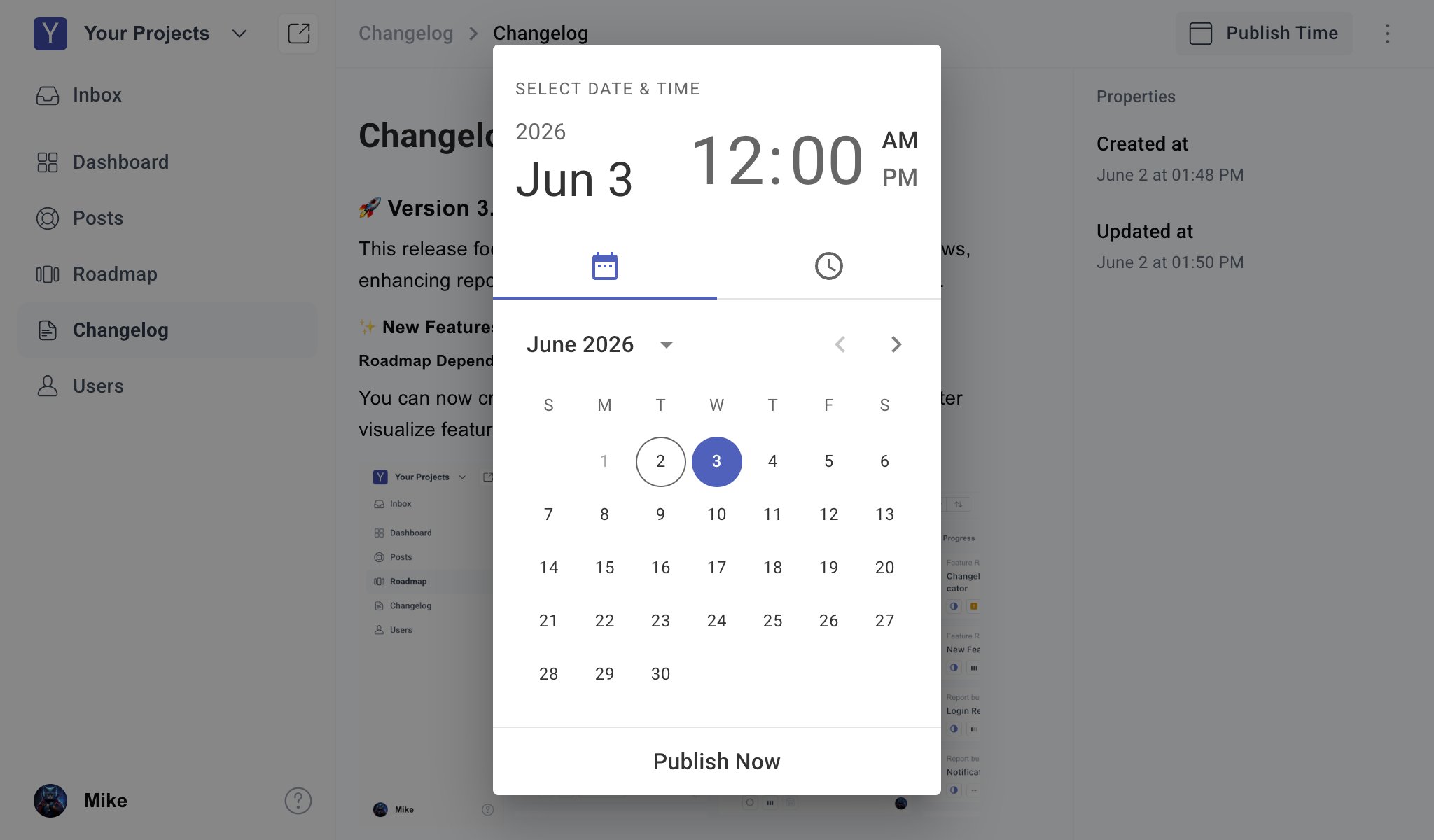 Use **Publish Now** when the update is already live. Use a scheduled release when you want the changelog to go public at the same time as a product launch, maintenance window, or marketing announcement.
Scheduled changelog entries remain hidden from the public portal until the selected publish time.
## Edit a changelog
Open an entry from the Changelog list to edit it.
You can update:
* Title and body content
* Release details and formatting
* Embedded images
* Publish time
* Draft, scheduled, or published state
The editor also shows entry properties, including creation time, update time, publish time, views, and likes.
For published entries, save changes carefully because updates affect what users see on the public portal.
## More actions
Use the more actions menu in the entry editor for destructive or state-changing operations.
Use **Publish Now** when the update is already live. Use a scheduled release when you want the changelog to go public at the same time as a product launch, maintenance window, or marketing announcement.
Scheduled changelog entries remain hidden from the public portal until the selected publish time.
## Edit a changelog
Open an entry from the Changelog list to edit it.
You can update:
* Title and body content
* Release details and formatting
* Embedded images
* Publish time
* Draft, scheduled, or published state
The editor also shows entry properties, including creation time, update time, publish time, views, and likes.
For published entries, save changes carefully because updates affect what users see on the public portal.
## More actions
Use the more actions menu in the entry editor for destructive or state-changing operations.
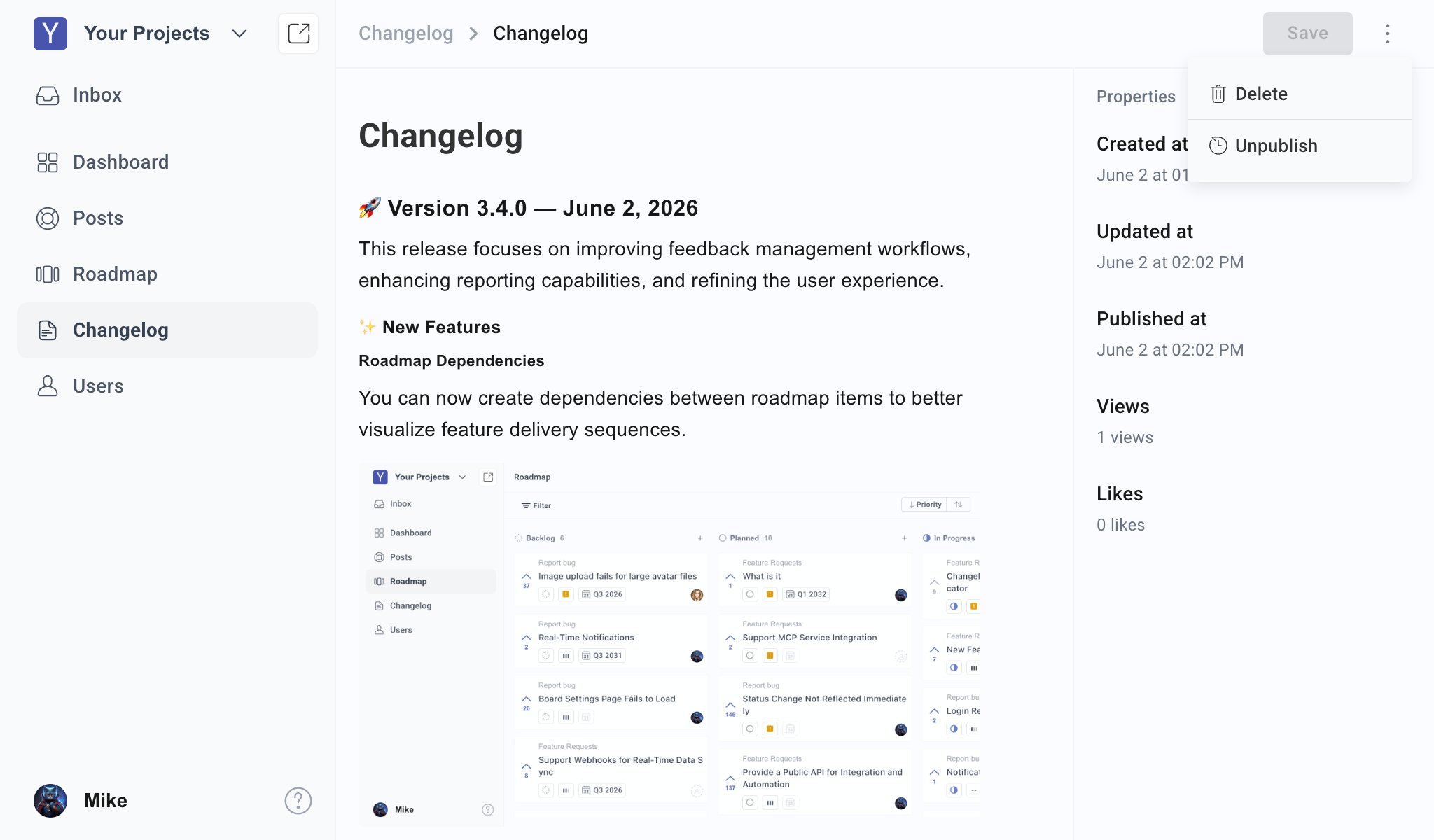 Available actions depend on the entry state:
* **Delete**: Permanently remove the changelog entry.
* **Unpublish**: Remove a published entry from the public portal and return it to a non-public state.
## Delete a changelog
To delete an entry:
Select the entry from the Changelog list.
Click the more actions menu in the top-right corner.
Confirm the deletion only after verifying the entry is no longer needed.
Deleting a changelog entry is permanent. If you only need to hide a published entry, use **Unpublish** instead.
## Public changelog experience
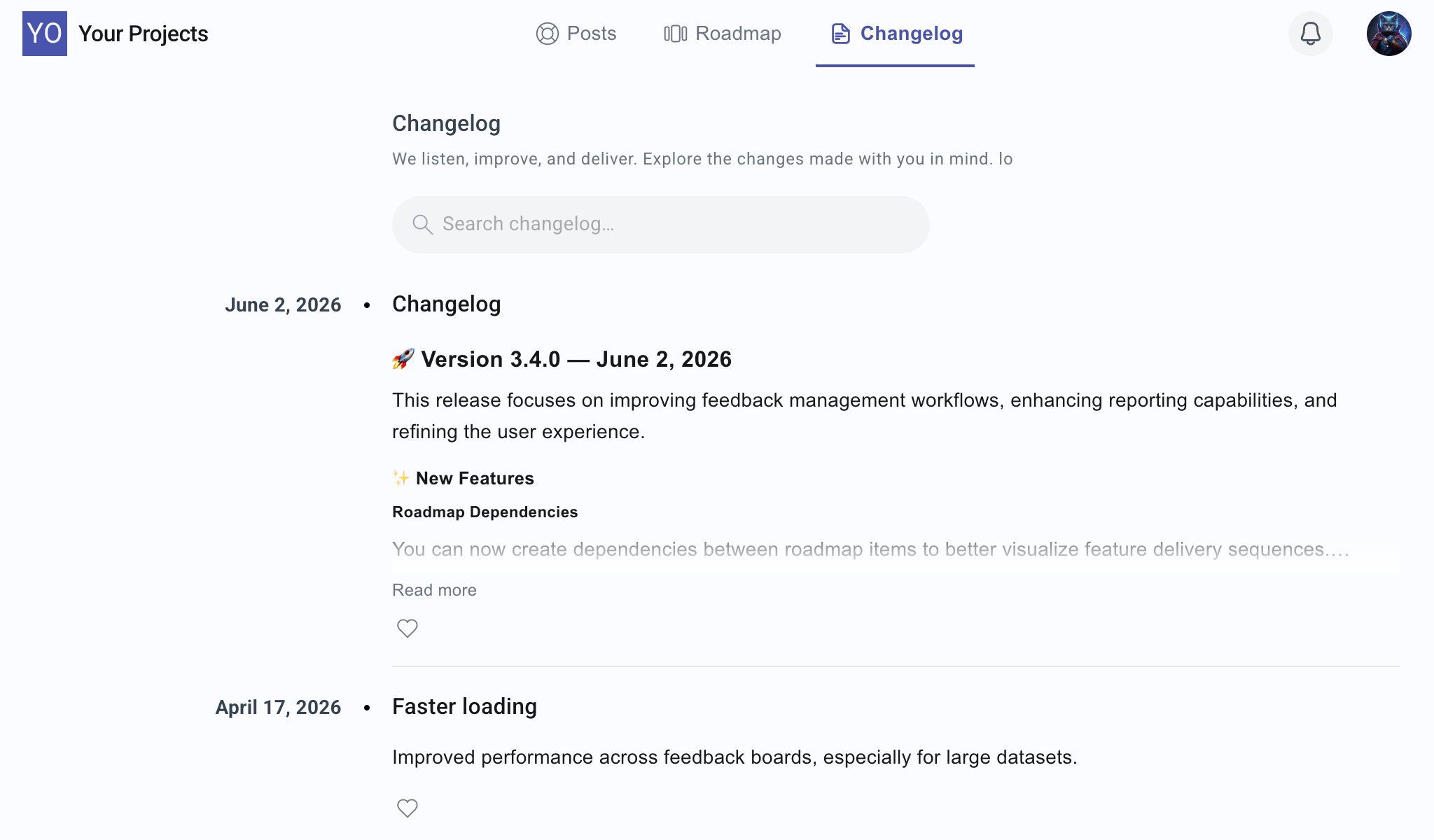
Published entries appear in the public portal under the Changelog tab.
Users can:
* Search changelog entries.
* Read the full update by selecting **Read more**.
* Like entries to show interest.
* Browse updates by release date.
Use concise titles and clear summaries so users can quickly understand what changed from the list view.
## What to publish
Publish updates when users need to know about a meaningful change.
Good changelog entries include:
* New features
* Important improvements
* Bug fixes that affected many users
* Workflow or UI changes
* Integrations and API changes
* Deprecations or breaking changes
Avoid publishing very small internal changes unless they affect the user experience.
## Best practices
* Use clear titles instead of vague release names.
* Keep entries concise and user-focused.
* Mention breaking changes near the top.
* Add screenshots for visible product changes.
* Schedule entries when the release should go public at a specific time.
* Unpublish instead of deleting when you may need the entry again later.
* Publish consistently so users know the portal is active.
## Related guides
Decide which feedback should move into the roadmap.
Keep public statuses aligned with product progress.
Available actions depend on the entry state:
* **Delete**: Permanently remove the changelog entry.
* **Unpublish**: Remove a published entry from the public portal and return it to a non-public state.
## Delete a changelog
To delete an entry:
Select the entry from the Changelog list.
Click the more actions menu in the top-right corner.
Confirm the deletion only after verifying the entry is no longer needed.
Deleting a changelog entry is permanent. If you only need to hide a published entry, use **Unpublish** instead.
## Public changelog experience
Published entries appear in the public portal under the Changelog tab.
Users can:
* Search changelog entries.
* Read the full update by selecting **Read more**.
* Like entries to show interest.
* Browse updates by release date.
Use concise titles and clear summaries so users can quickly understand what changed from the list view.
## What to publish
Publish updates when users need to know about a meaningful change.
Good changelog entries include:
* New features
* Important improvements
* Bug fixes that affected many users
* Workflow or UI changes
* Integrations and API changes
* Deprecations or breaking changes
Avoid publishing very small internal changes unless they affect the user experience.
## Best practices
* Use clear titles instead of vague release names.
* Keep entries concise and user-focused.
* Mention breaking changes near the top.
* Add screenshots for visible product changes.
* Schedule entries when the release should go public at a specific time.
* Unpublish instead of deleting when you may need the entry again later.
* Publish consistently so users know the portal is active.
## Related guides
Decide which feedback should move into the roadmap.
Keep public statuses aligned with product progress.