> ## Documentation Index
> Fetch the complete documentation index at: https://help.suggix.com/llms.txt
> Use this file to discover all available pages before exploring further.
# Feedback Portal
> Learn how users browse, create, vote on, and discuss feedback in the public portal.
The feedback portal is the public-facing place where users submit feedback, vote on requests, follow status updates, and discuss ideas with your team.
Users can access the portal from your Suggix subdomain or custom domain. The portal includes Posts, Roadmap, and Changelog navigation when those modules are enabled.
## Browse feedback
The Posts page shows all public feedback and board-specific feedback in one place.
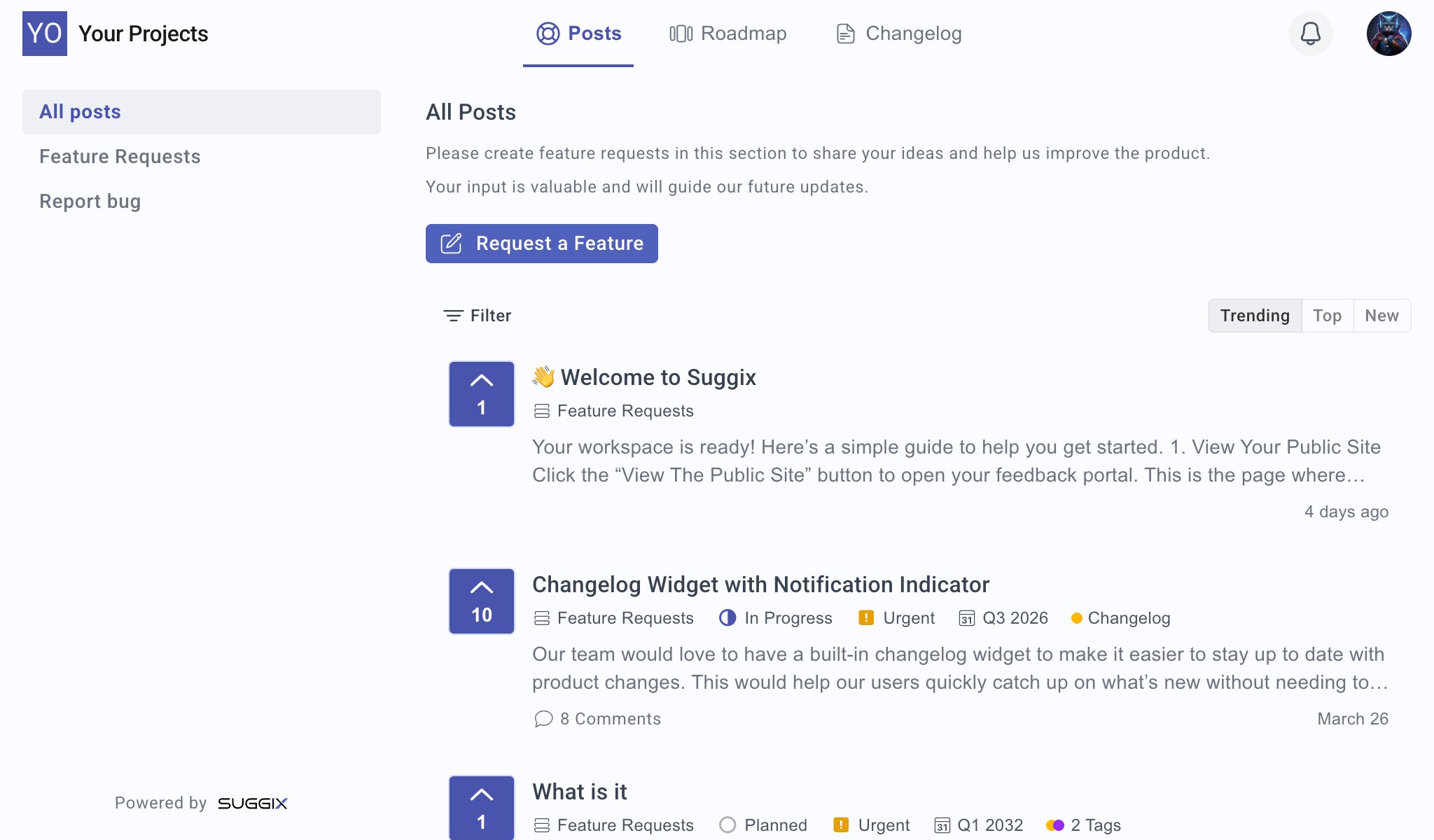 Users can:
* Switch between boards from the left sidebar.
* View all posts or posts from a specific board.
* Submit feedback with the primary action button.
* Filter the visible list.
* Sort posts by `Trending`, `Top`, or `New`.
* See vote counts, board names, statuses, priorities, due dates, tags, comment counts, and post dates.
Encourage users to search and review existing posts before creating a new one. This reduces duplicates and makes voting more useful.
## Create feedback
Users create feedback from the portal by selecting a board and opening the new post dialog.
Users can:
* Switch between boards from the left sidebar.
* View all posts or posts from a specific board.
* Submit feedback with the primary action button.
* Filter the visible list.
* Sort posts by `Trending`, `Top`, or `New`.
* See vote counts, board names, statuses, priorities, due dates, tags, comment counts, and post dates.
Encourage users to search and review existing posts before creating a new one. This reduces duplicates and makes voting more useful.
## Create feedback
Users create feedback from the portal by selecting a board and opening the new post dialog.
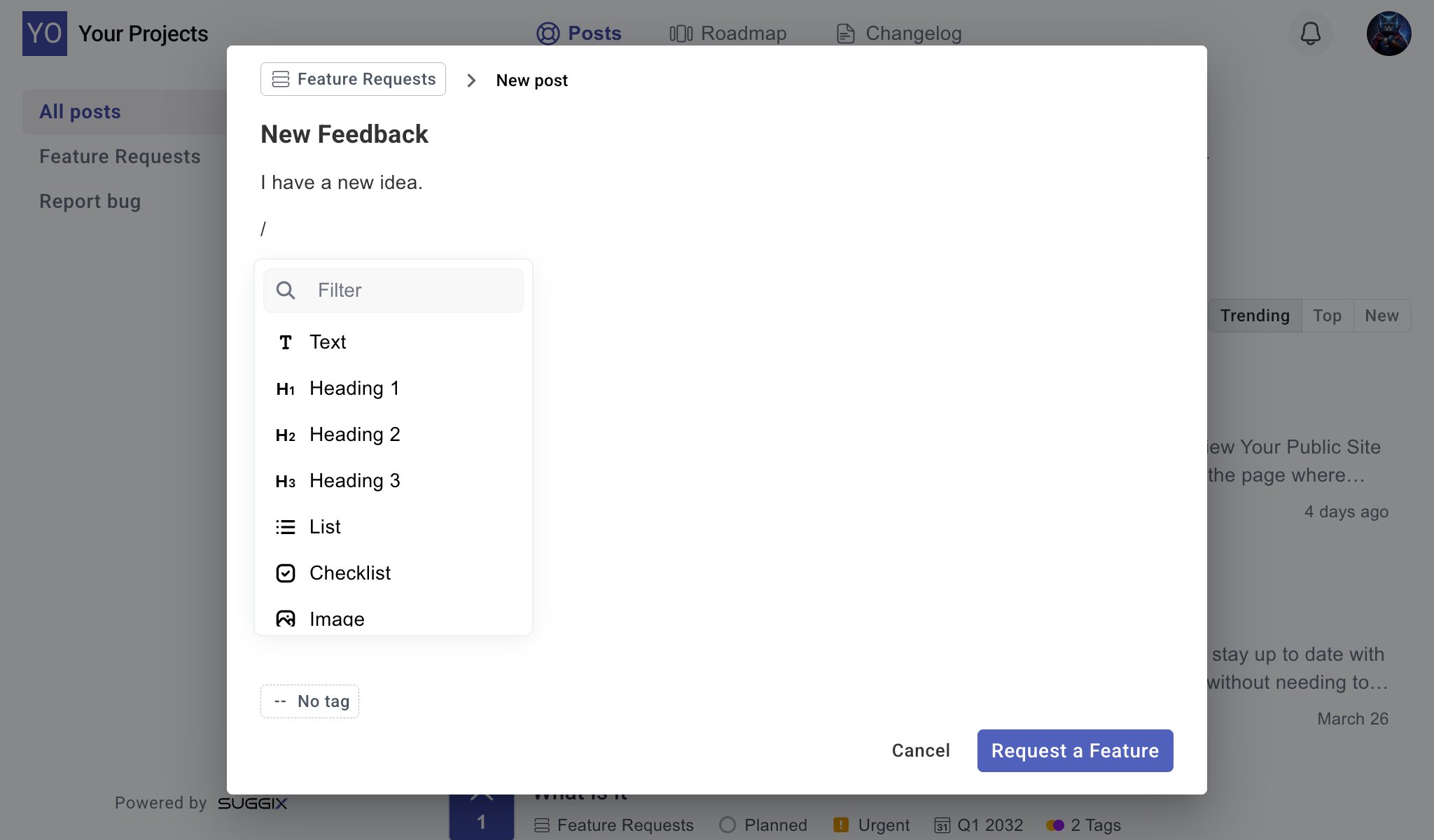 The creation dialog includes:
* **Board selector**: Choose where the feedback should be submitted.
* **Title**: Summarize the request or issue.
* **Description editor**: Add details using rich content blocks.
* **Tags**: Add available tags when they are configured for the board.
* **Submit button**: The button text can match the board purpose, such as `Request a Feature`.
The editor supports content blocks such as:
* Text
* Heading 1, Heading 2, and Heading 3
* List
* Checklist
* Image
Good feedback usually includes the problem, expected outcome, current workaround, and any screenshots or examples that help your team understand the request.
## View post details
Selecting a post opens its detail page.
The creation dialog includes:
* **Board selector**: Choose where the feedback should be submitted.
* **Title**: Summarize the request or issue.
* **Description editor**: Add details using rich content blocks.
* **Tags**: Add available tags when they are configured for the board.
* **Submit button**: The button text can match the board purpose, such as `Request a Feature`.
The editor supports content blocks such as:
* Text
* Heading 1, Heading 2, and Heading 3
* List
* Checklist
* Image
Good feedback usually includes the problem, expected outcome, current workaround, and any screenshots or examples that help your team understand the request.
## View post details
Selecting a post opens its detail page.
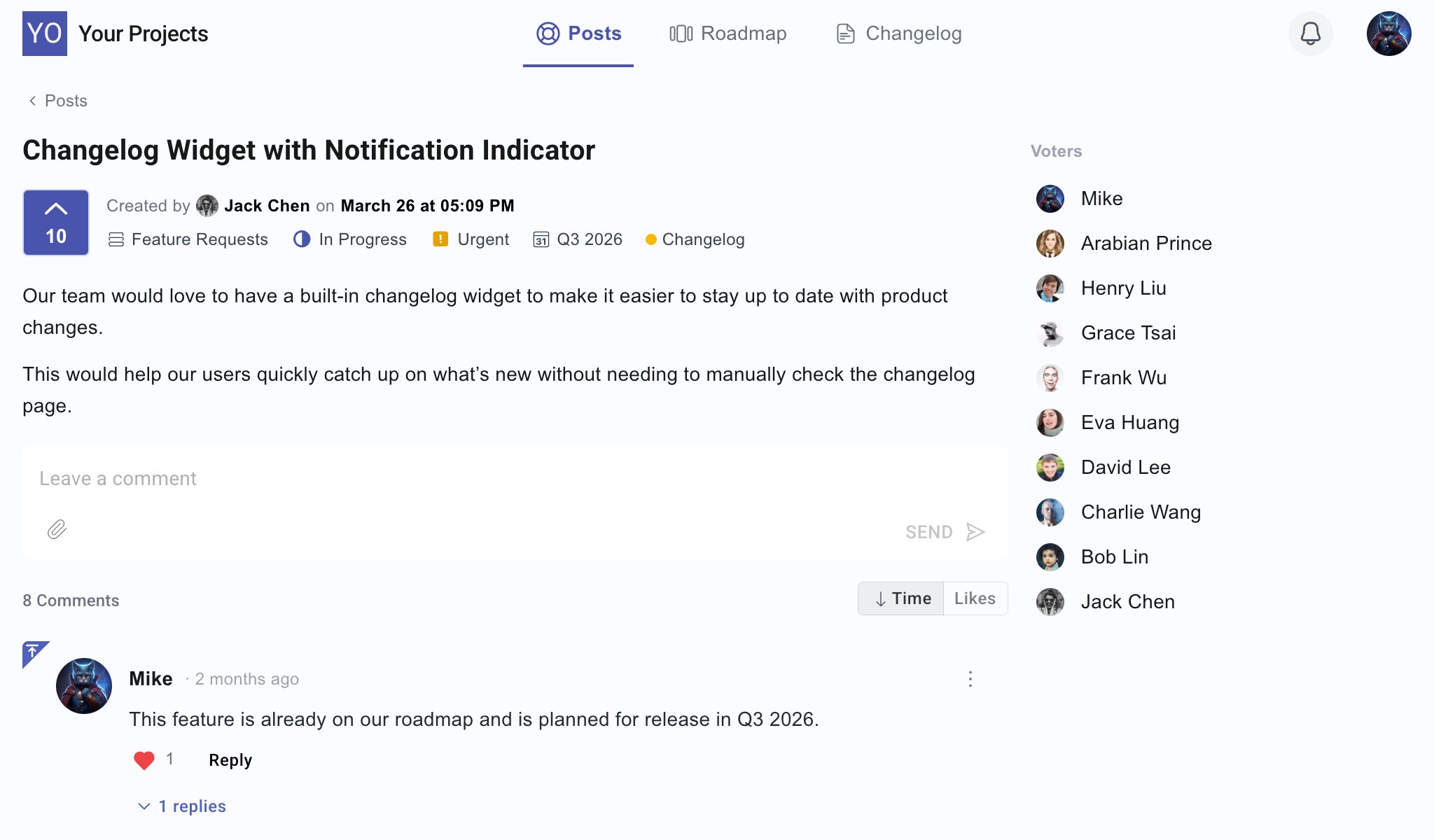 The detail page shows:
* Post title and description
* Author and created date
* Board
* Status
* Priority
* Due date
* Tags
* Vote count
* Voter list, when enabled
* Comment thread
Users can vote on a post, leave comments, like comments, and reply to existing comments. Comments help your team gather context without creating duplicate feedback.
## Public interaction settings
Board settings control what users can do on the portal.
* **Read-only** boards let users view posts without creating new ones.
* **Anonymous posting** allows users to submit feedback without signing in.
* **Show voters and comment likers** controls whether public identities appear.
* **Show vote counts** controls whether users can see demand for each post.
For setup details, see [Board Configuration](/settings/board).
## Recommended workflow
Use clear board names such as `Feature Requests`, `Bug Reports`, or `Ideas`.
Link users to the portal from your app, website, help center, or onboarding emails.
Ask users to vote on existing posts instead of creating duplicates.
Keep users informed by updating statuses and adding comments when work moves forward.
## Related guides
Review, filter, assign, tag, and update feedback from the dashboard.
Use votes and context to decide what to build next.
The detail page shows:
* Post title and description
* Author and created date
* Board
* Status
* Priority
* Due date
* Tags
* Vote count
* Voter list, when enabled
* Comment thread
Users can vote on a post, leave comments, like comments, and reply to existing comments. Comments help your team gather context without creating duplicate feedback.
## Public interaction settings
Board settings control what users can do on the portal.
* **Read-only** boards let users view posts without creating new ones.
* **Anonymous posting** allows users to submit feedback without signing in.
* **Show voters and comment likers** controls whether public identities appear.
* **Show vote counts** controls whether users can see demand for each post.
For setup details, see [Board Configuration](/settings/board).
## Recommended workflow
Use clear board names such as `Feature Requests`, `Bug Reports`, or `Ideas`.
Link users to the portal from your app, website, help center, or onboarding emails.
Ask users to vote on existing posts instead of creating duplicates.
Keep users informed by updating statuses and adding comments when work moves forward.
## Related guides
Review, filter, assign, tag, and update feedback from the dashboard.
Use votes and context to decide what to build next.