

What is a Board
In Suggix, a Board is the core unit for collecting and displaying user feedback. Each Board usually represents a specific feedback type, such as Feature Requests, Bug Reports, or Ideas. Every Board has its own:- Public URL
- Display rules
- Submission form
- Voting and interaction settings
A single workspace can contain multiple Boards to organize different kinds of feedback.
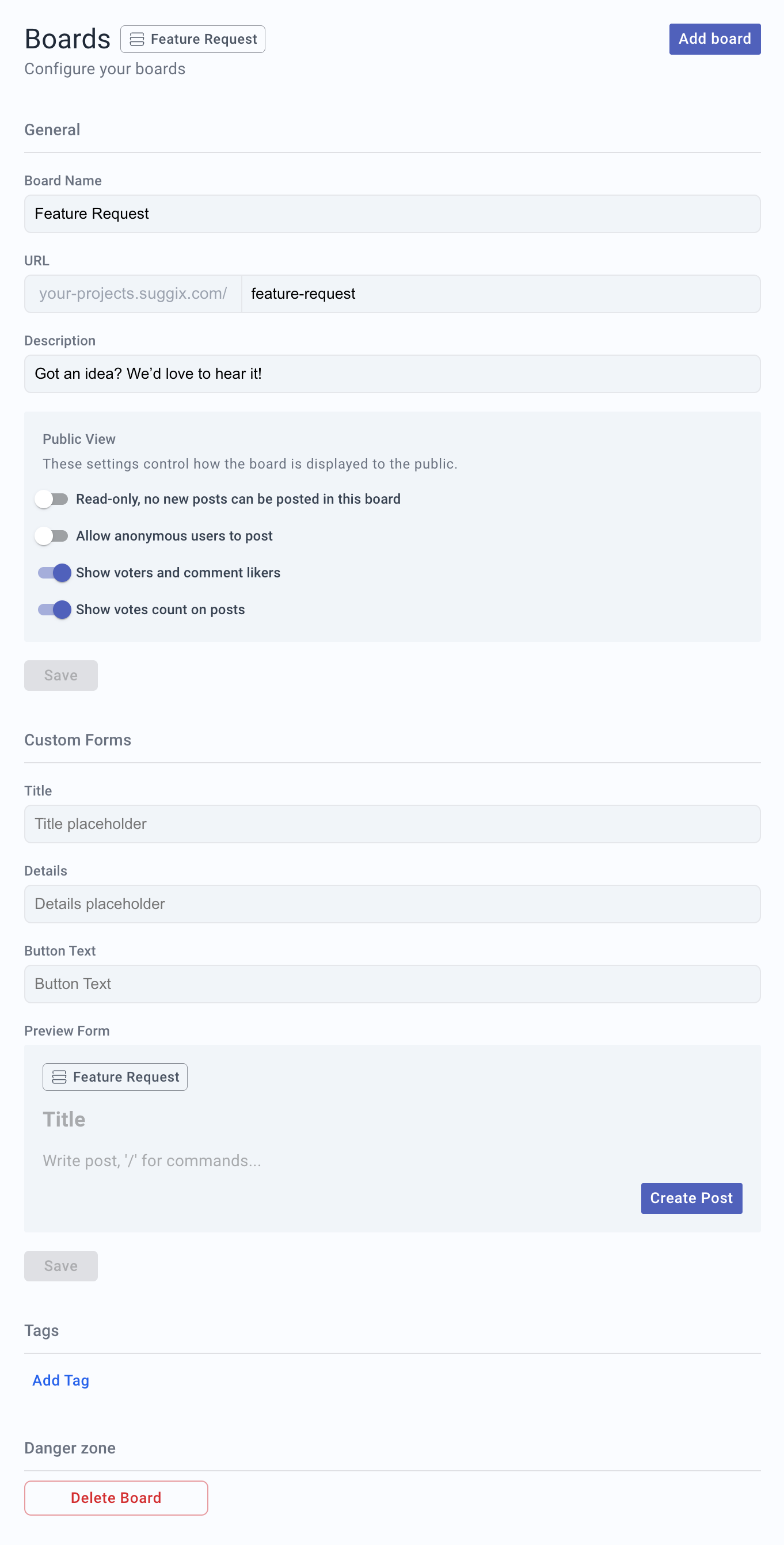
General Settings
Board Name
The name of the Board shown in both the admin panel and the public feedback page.- Example:
Feature Requests - Use a clear and descriptive name that reflects the Board’s purpose
URL
The public access path for this Board.- Format:
https://your-workspace.suggix.com/{board-slug} - You only need to edit the slug, for example
feature-requests
Description
A short description displayed at the top of the Board page to explain its purpose.- Example:
Got an idea? We'd love to hear it!
Public View
These settings control how the Board is displayed and used by public users.Read-only
When enabled:- Users can view existing posts only
- New posts cannot be created
Allow anonymous users to post
When enabled:- Users can submit feedback without logging in
- Posts are marked as submitted by anonymous users
Show voters and comment likers
When enabled:- Users can see who voted on a post
- Users can see who liked comments
Show votes count on posts
When enabled:- Posts display their total vote count
- Users can quickly identify popular requests
- Your team can use votes as one input for prioritization
Once saved, these changes immediately affect the public Board view.
Custom Forms
Customize the text users see when creating a new post.Title Placeholder
Placeholder text for the post title input field.- Example:
Briefly describe your idea
Details Placeholder
Placeholder text for the post details input field.- Example:
Add more context, screenshots, or use cases
Button Text
The text displayed on the submission button.- Example:
Create Post - Example:
Submit Feedback
Tags
Tags help categorize and filter posts within a Board.- Click Add Tag to create new tags.
- Use tags for feature areas, priority levels, product modules, or customer segments.
- Examples:
UI,API,High Priority,Enterprise
Consistent tag usage makes feedback easier to manage and analyze over time.