

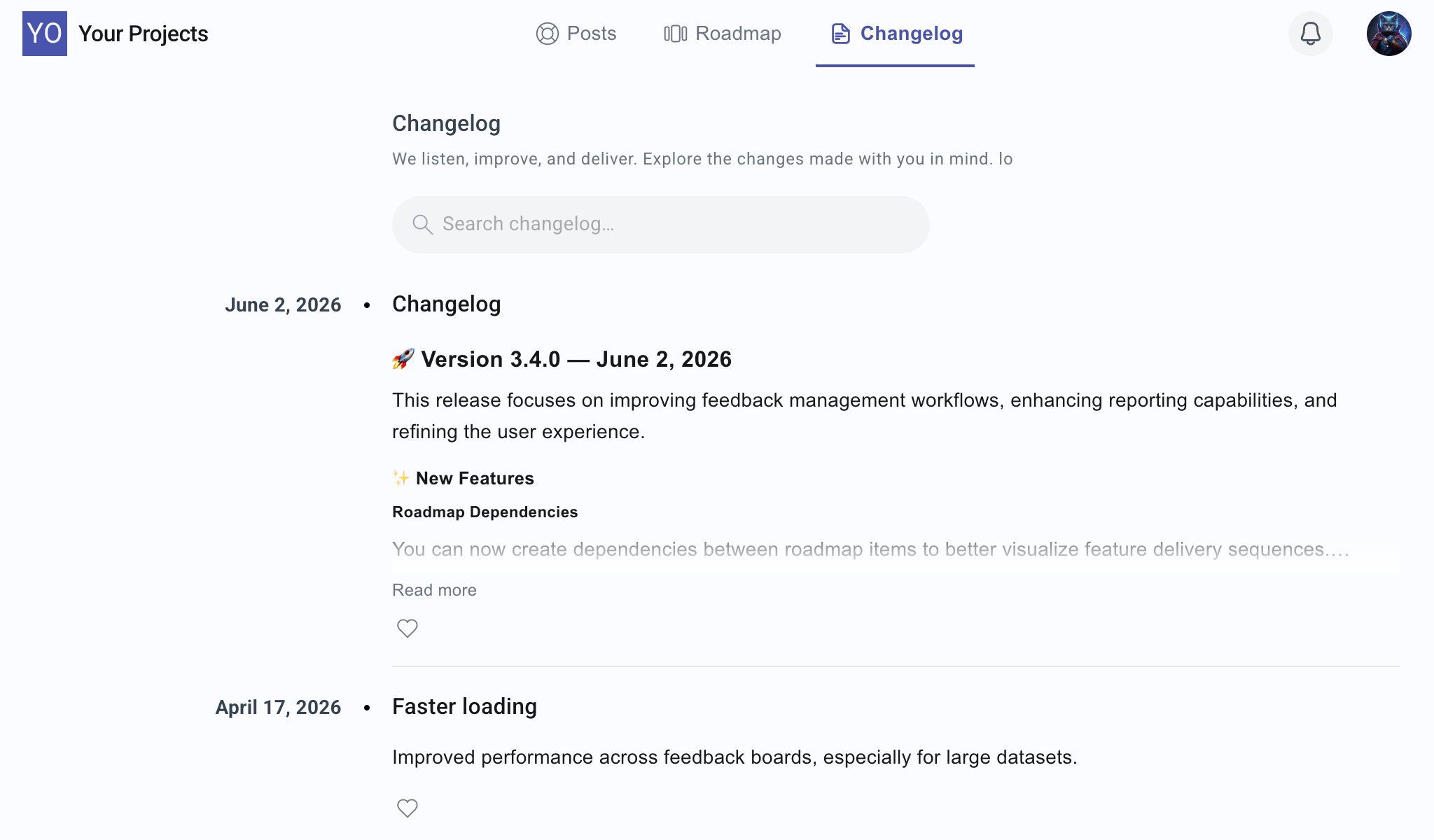
Changelog list
Open Changelog from the Suggix dashboard sidebar to view and manage all changelog entries.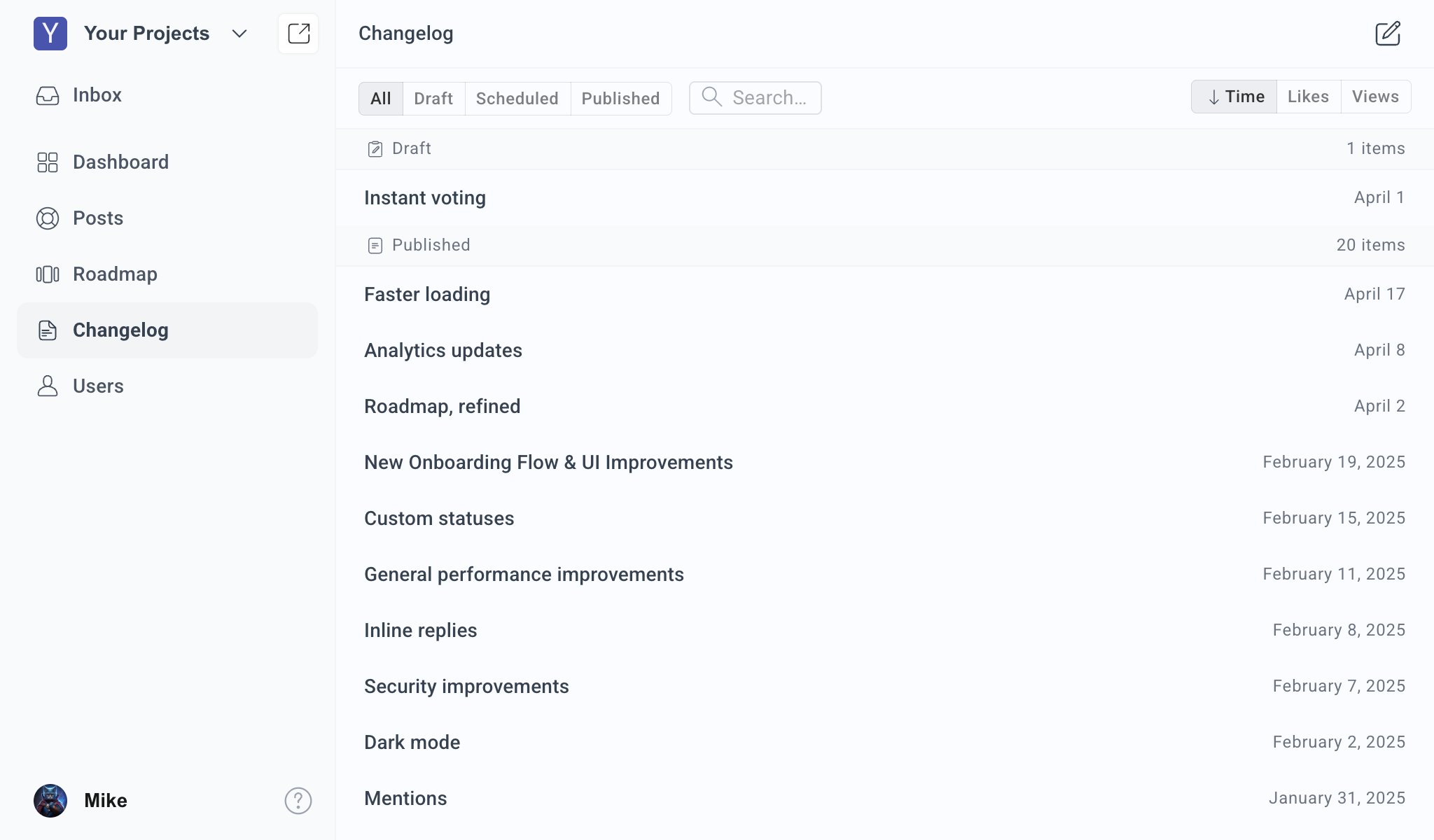
- Status filters: View
All,Draft,Scheduled, orPublishedentries. - Search: Find entries by title or content.
- Sorting: Sort by publish time, likes, or views.
- Grouped sections: Entries are grouped by status so drafts, scheduled releases, and published updates are easy to scan.
- Entry dates: Published and scheduled entries show their relevant release date.
Create a changelog
Click the create button in the top-right corner of the Changelog page to add a new entry.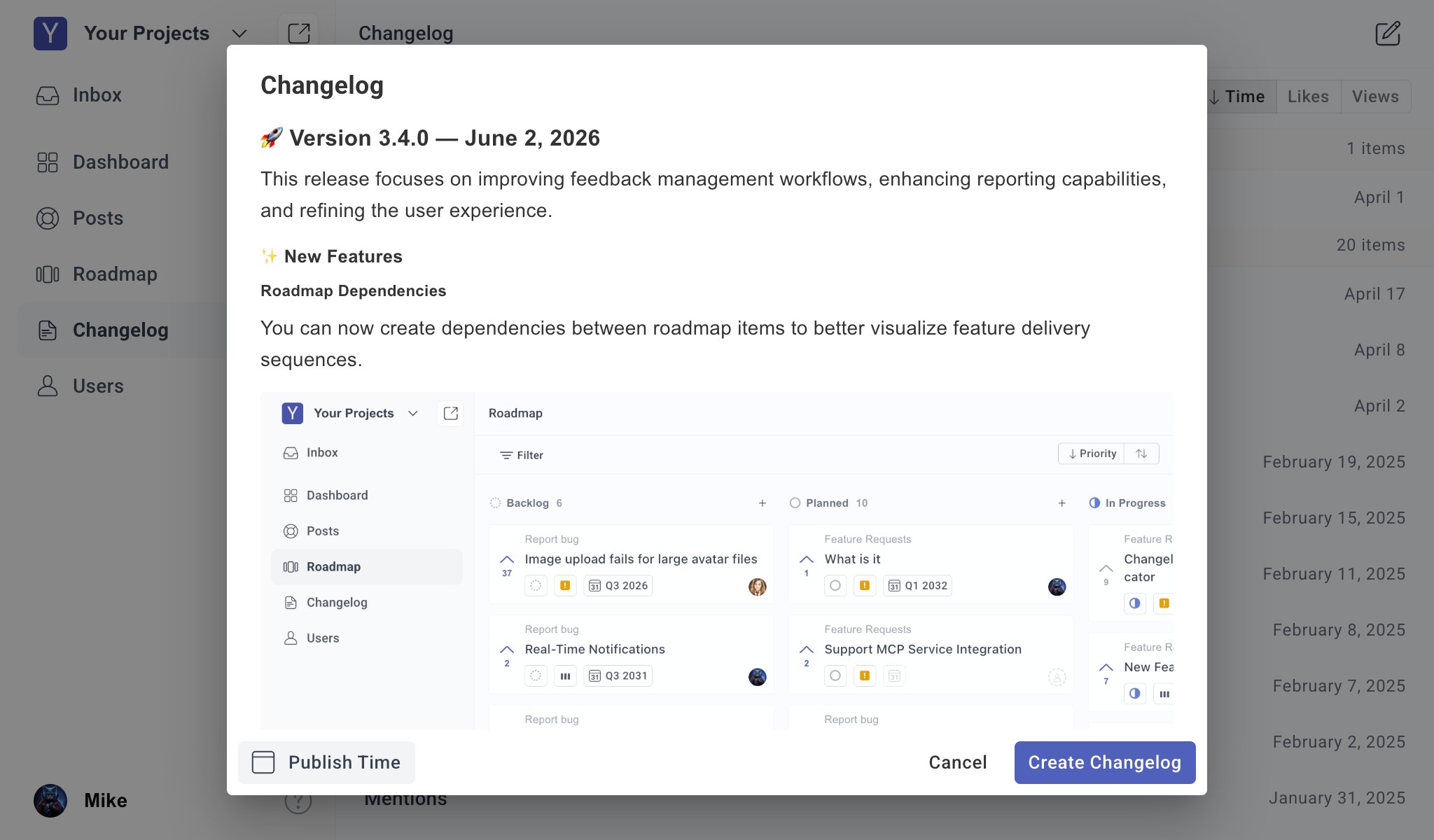
- Title: A clear release title, such as
Version 3.4.0orFaster loading. - Summary: A short opening paragraph that explains the value of the update.
- Sections: Group related changes under headings such as
New Features,Improvements, orBug Fixes. - Details: Explain what changed, who benefits, and whether users need to take action.
- Images: Add screenshots when the update changes a visible workflow or interface.
Publish now or schedule release
You can publish a changelog immediately or schedule it for a future date and time.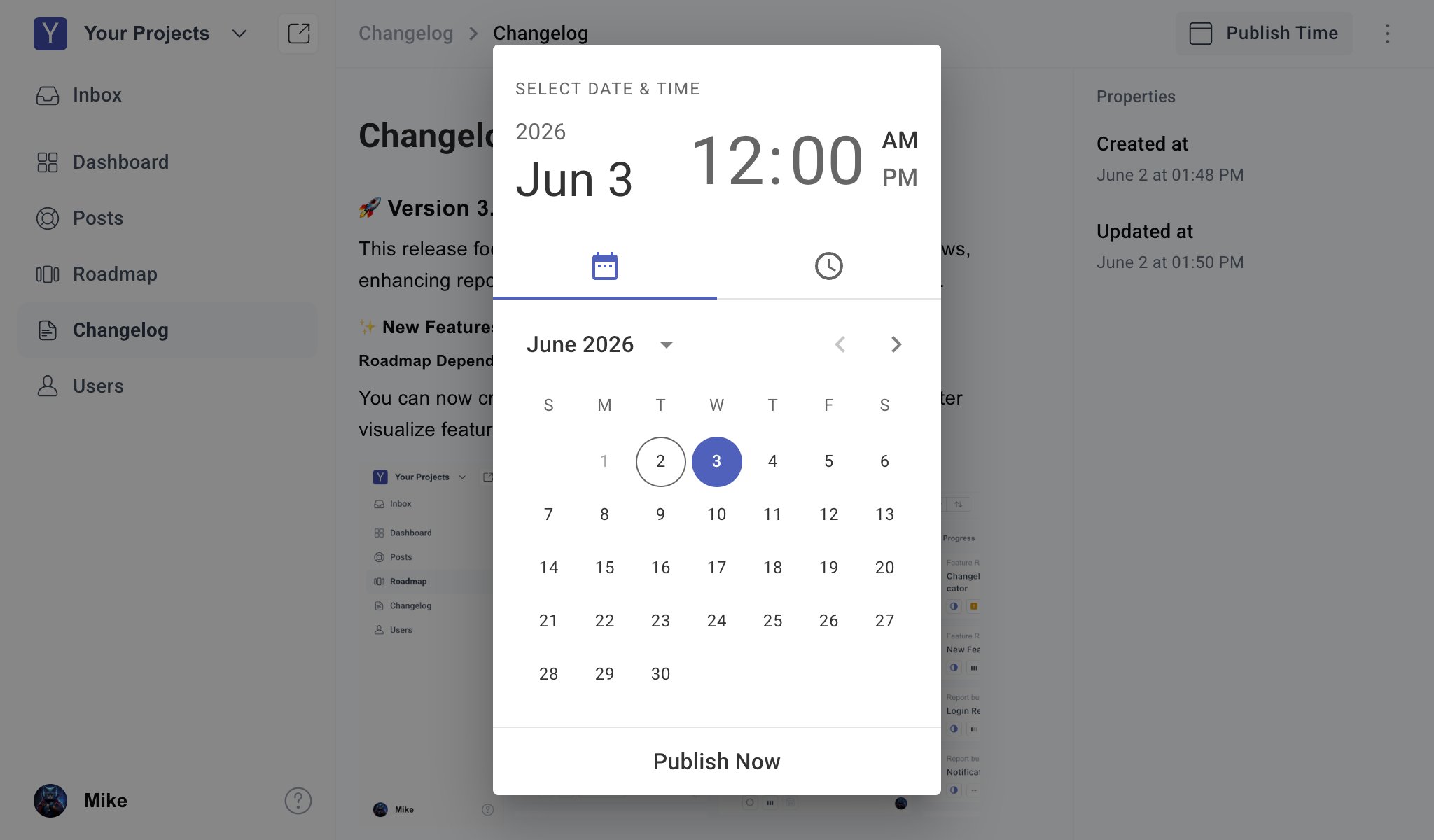
Edit a changelog
Open an entry from the Changelog list to edit it. You can update:- Title and body content
- Release details and formatting
- Embedded images
- Publish time
- Draft, scheduled, or published state
For published entries, save changes carefully because updates affect what users see on the public portal.
More actions
Use the more actions menu in the entry editor for destructive or state-changing operations.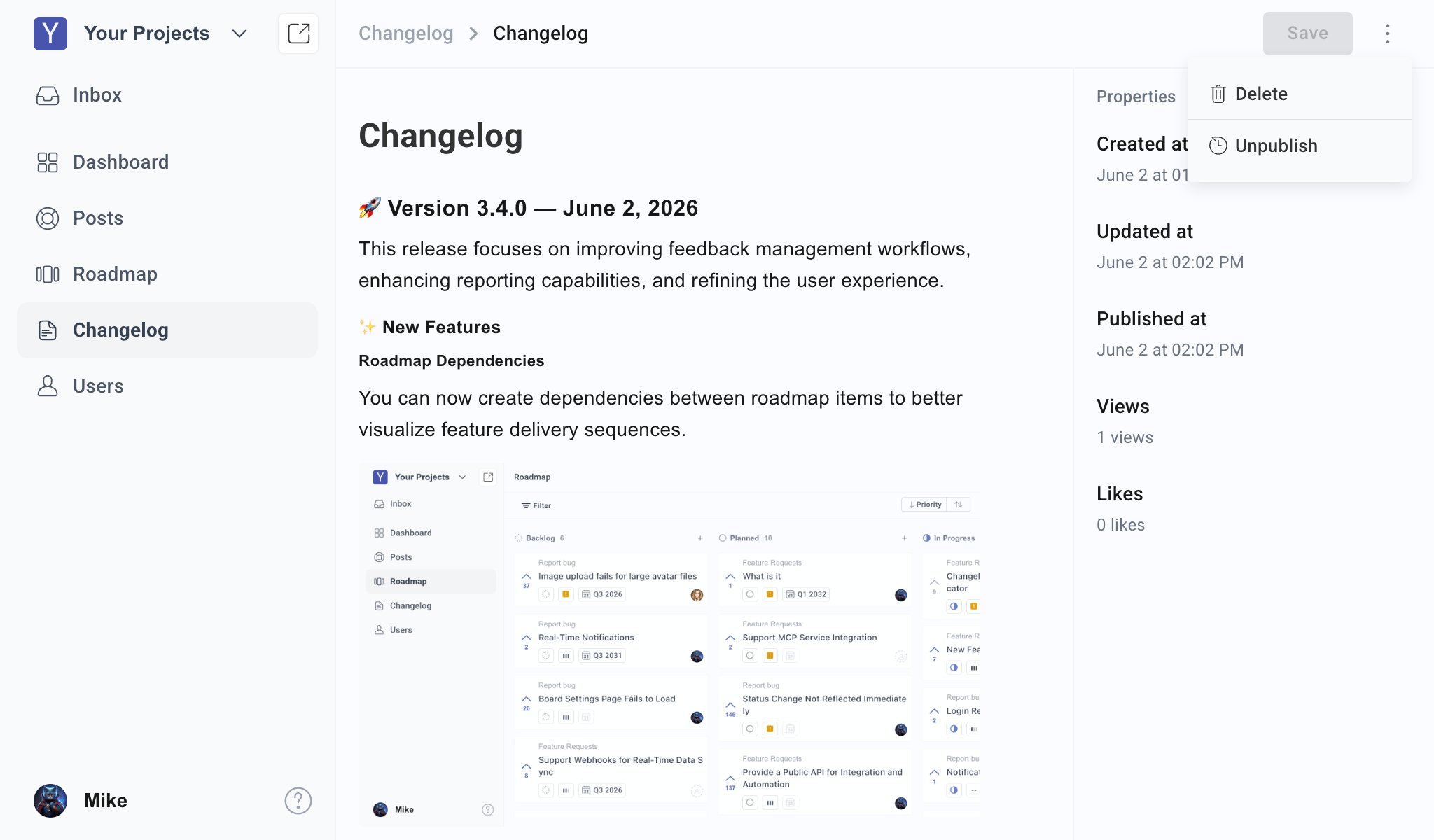
- Delete: Permanently remove the changelog entry.
- Unpublish: Remove a published entry from the public portal and return it to a non-public state.
Delete a changelog
To delete an entry:1
Open the changelog entry
Select the entry from the Changelog list.
2
Open more actions
Click the more actions menu in the top-right corner.
3
Choose Delete
Confirm the deletion only after verifying the entry is no longer needed.
Public changelog experience
Published entries appear in the public portal under the Changelog tab. Users can:- Search changelog entries.
- Read the full update by selecting Read more.
- Like entries to show interest.
- Browse updates by release date.
What to publish
Publish updates when users need to know about a meaningful change. Good changelog entries include:- New features
- Important improvements
- Bug fixes that affected many users
- Workflow or UI changes
- Integrations and API changes
- Deprecations or breaking changes
Best practices
- Use clear titles instead of vague release names.
- Keep entries concise and user-focused.
- Mention breaking changes near the top.
- Add screenshots for visible product changes.
- Schedule entries when the release should go public at a specific time.
- Unpublish instead of deleting when you may need the entry again later.
- Publish consistently so users know the portal is active.
Related guides
Voting and prioritization
Decide which feedback should move into the roadmap.
Roadmap Management
Keep public statuses aligned with product progress.