

Browse feedback
The Posts page shows all public feedback and board-specific feedback in one place.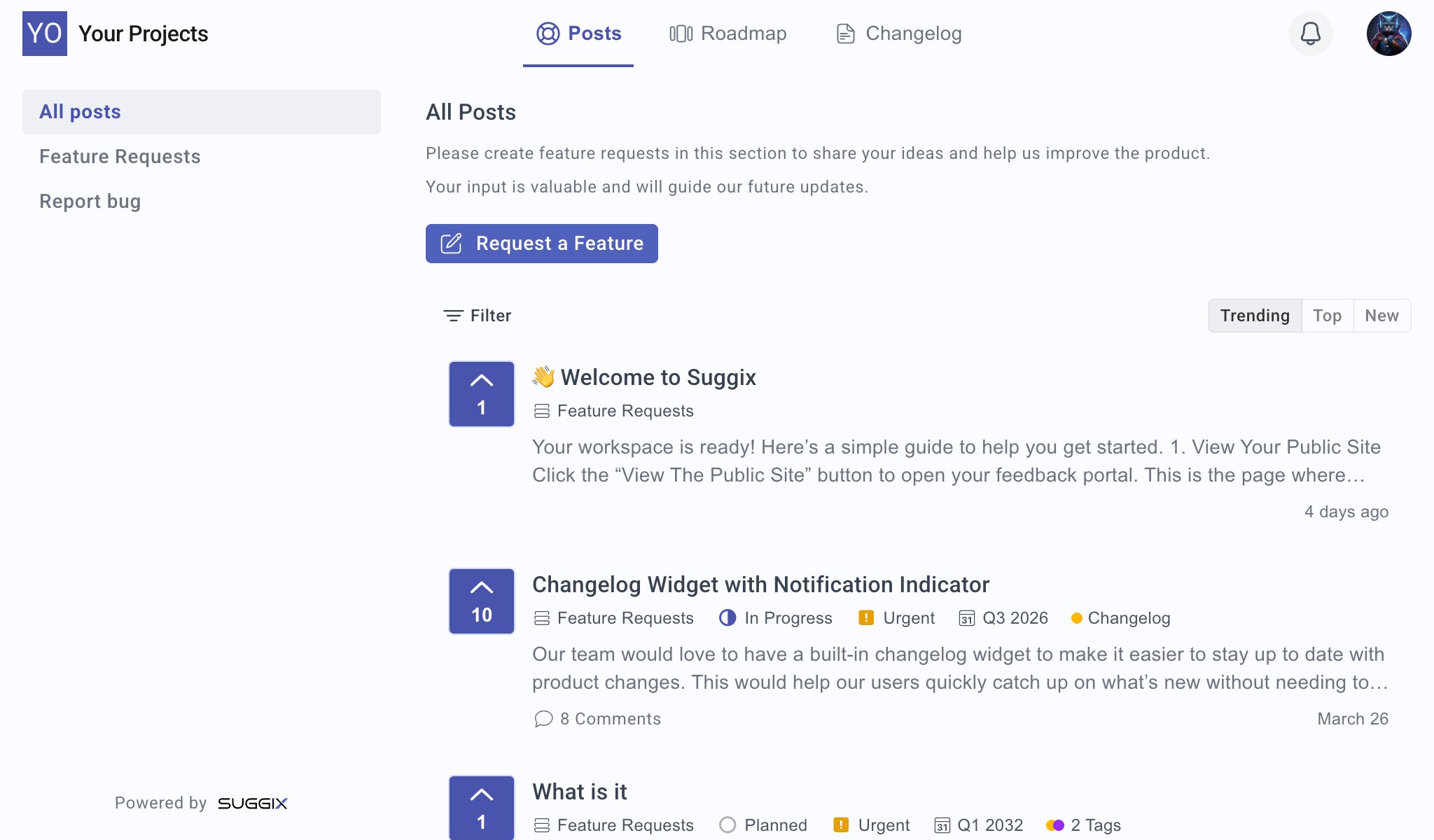
- Switch between boards from the left sidebar.
- View all posts or posts from a specific board.
- Submit feedback with the primary action button.
- Filter the visible list.
- Sort posts by
Trending,Top, orNew. - See vote counts, board names, statuses, priorities, due dates, tags, comment counts, and post dates.
Create feedback
Users create feedback from the portal by selecting a board and opening the new post dialog.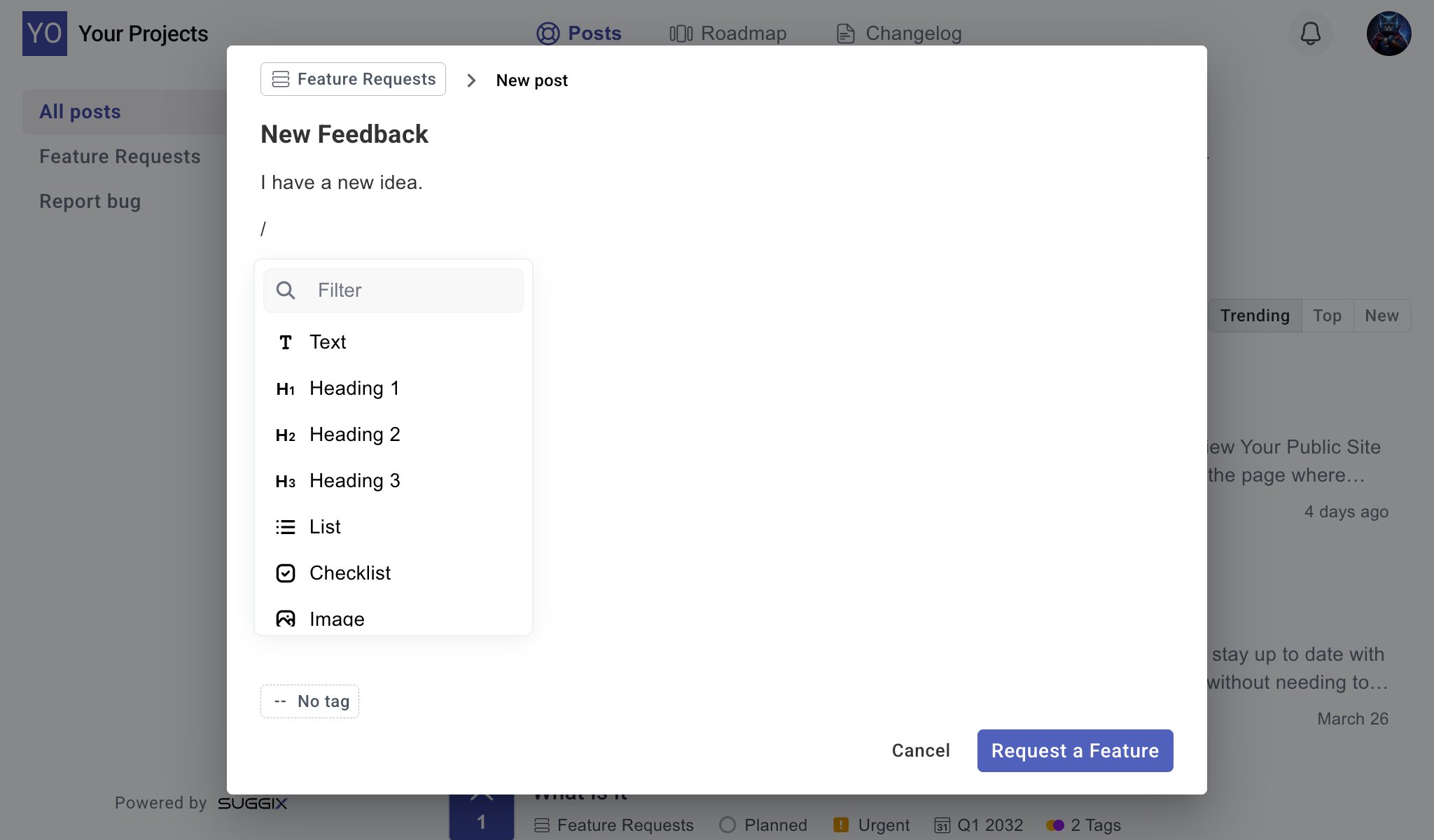
- Board selector: Choose where the feedback should be submitted.
- Title: Summarize the request or issue.
- Description editor: Add details using rich content blocks.
- Tags: Add available tags when they are configured for the board.
- Submit button: The button text can match the board purpose, such as
Request a Feature.
- Text
- Heading 1, Heading 2, and Heading 3
- List
- Checklist
- Image
View post details
Selecting a post opens its detail page.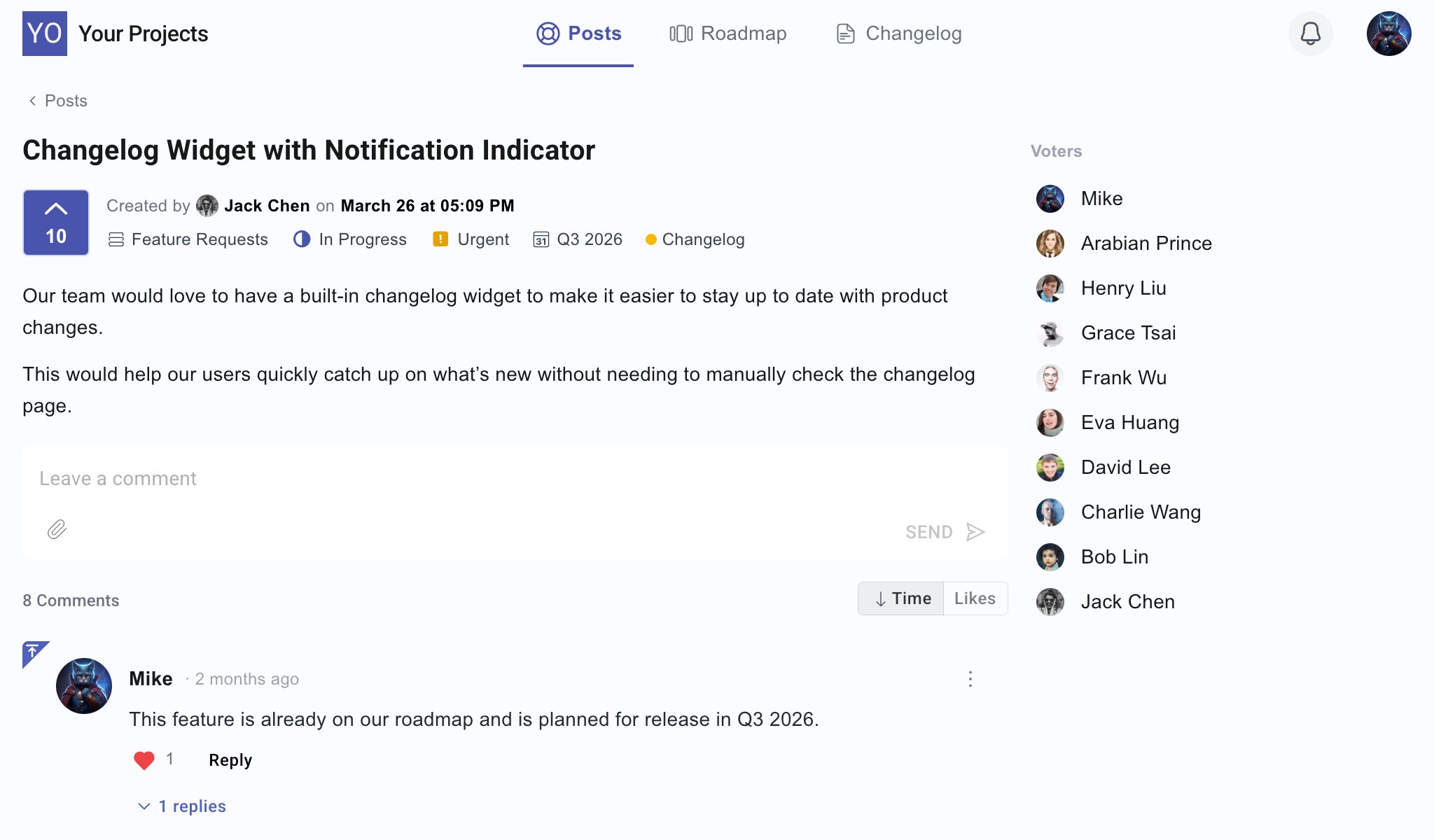
- Post title and description
- Author and created date
- Board
- Status
- Priority
- Due date
- Tags
- Vote count
- Voter list, when enabled
- Comment thread
Public interaction settings
Board settings control what users can do on the portal.- Read-only boards let users view posts without creating new ones.
- Anonymous posting allows users to submit feedback without signing in.
- Show voters and comment likers controls whether public identities appear.
- Show vote counts controls whether users can see demand for each post.
Recommended workflow
1
Create focused boards
Use clear board names such as
Feature Requests, Bug Reports, or Ideas.2
Share the portal
Link users to the portal from your app, website, help center, or onboarding emails.
3
Encourage voting
Ask users to vote on existing posts instead of creating duplicates.
4
Respond with status updates
Keep users informed by updating statuses and adding comments when work moves forward.
Related guides
Post Management
Review, filter, assign, tag, and update feedback from the dashboard.
Voting and Prioritization
Use votes and context to decide what to build next.