

- Feature Requests
- Bug Reports
- Product Ideas
- Integrations
- Roadmap
Create a board
1
Open board settings
Go to Settings → Boards in your Suggix dashboard.
2
Create a new board
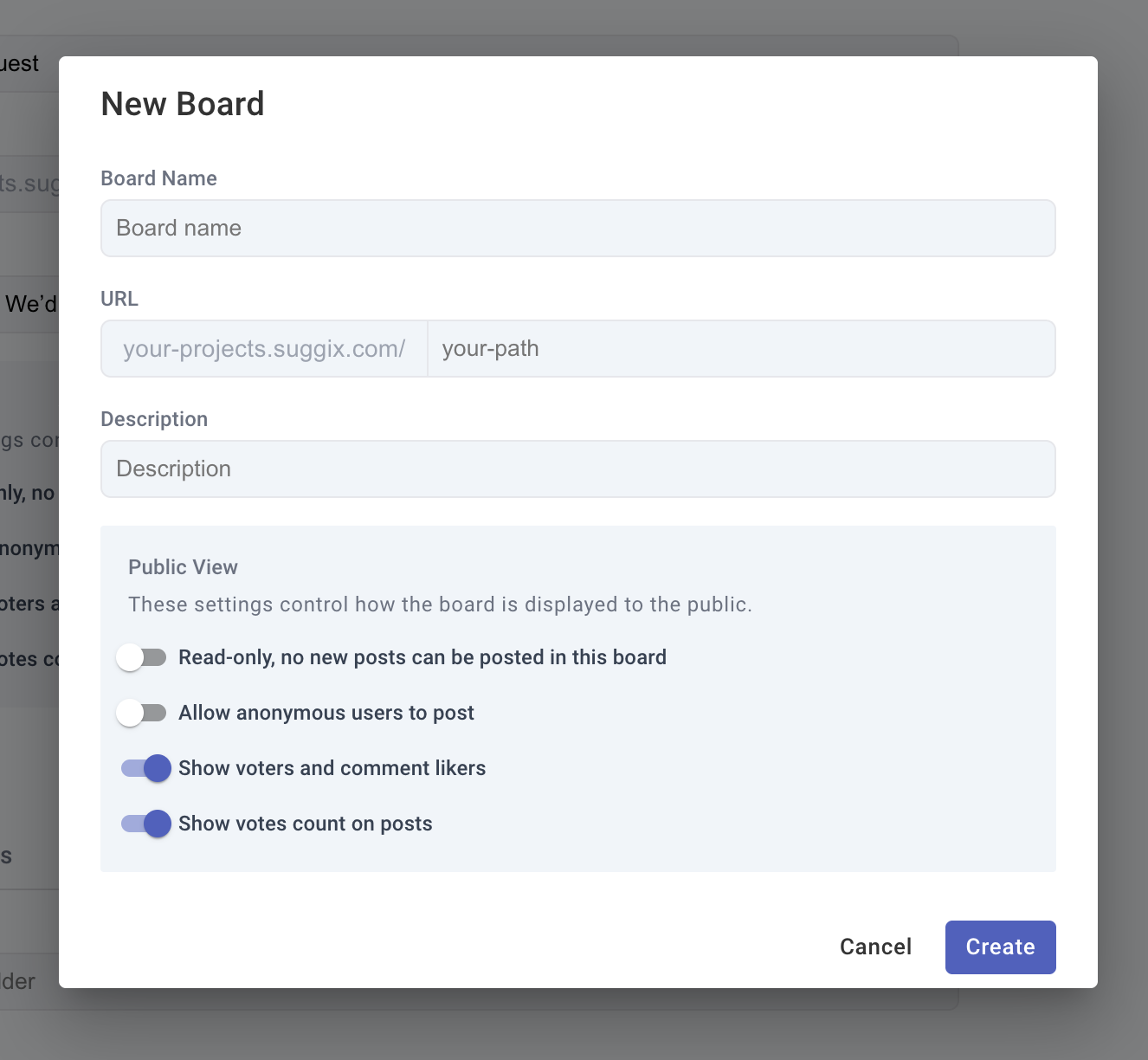
Add a board name, URL slug, and description. The name and description should help users understand what kind of feedback belongs on the board.
3
Configure public behavior
Decide whether users can create posts, whether anonymous posting is allowed, and whether vote counts and voters are visible.
4
Save and share
After saving, open the public board URL and share it with users from your website, app, help center, or product emails.
Choose a board structure
Start with a small number of boards. Too many boards make it harder for users to decide where to post and harder for your team to triage feedback.Configure submission copy
Each board can customize the form text users see when they create a post.- Title placeholder: Ask for a concise summary.
- Details placeholder: Ask for context, use cases, screenshots, or expected behavior.
- Button text: Match the board purpose, such as
Submit ideaorReport bug.
Manage posts
After users submit feedback, review posts regularly and keep the public status current.- Merge or close duplicate posts when needed.
- Apply tags to group related feedback.
- Update status when work moves from review to planned, in progress, or completed.
- Add comments when you need more context or want to explain a decision.
Related settings
Board configuration
Configure board names, URLs, public behavior, form copy, tags, and deletion.
Feedback Portal
Learn how users browse, submit, vote on, and discuss feedback.